Jira
Jira is optional. It links your support conversations to the tickets your team opens from them, so you can follow a customer request all the way into development.
What it does
When a conversation needs the product team, support opens a Jira ticket and the customer waits. ResponZ brings that ticket back next to the conversation: its status, who owns it, how long it has been there. It also tells you when a ticket needs a reply to the customer, or has stopped moving.
It works with the Jira app for Intercom: tickets created from an Intercom conversation are linked to that conversation automatically.
Before you start
- Role: only the organization owner can connect, change or disconnect Jira. Every member can then see the results.
- Jira Cloud: your site address looks like https://your-site.atlassian.net.
- An Atlassian account that can see the project you want to follow. To connect with an API token instead of Atlassian, create it on id.atlassian.com under Security, API tokens, with the same account whose email you give to ResponZ.
- Intercom connected, so tickets can be matched to conversations.
Connect Jira
Open Settings → Connections and use the Jira card.
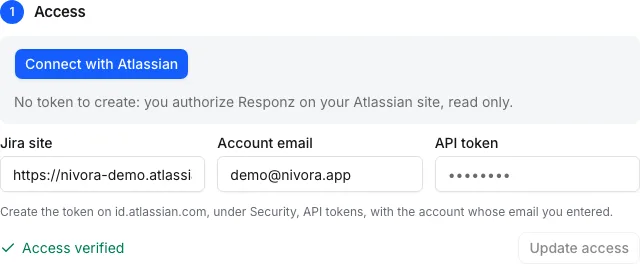
- Access. Two ways to connect. The simplest: Connect with Atlassian. You authorize ResponZ on your Atlassian site, with no token to copy. If your account gives access to a single site, it is used directly; if it has several, you see Choose the Jira site to follow and confirm with Use this site. If you refuse the authorization at Atlassian, a message appears and nothing is saved. The other way: enter your Jira site address, the account email and the API token, then choose Verify and connect. If Jira refuses the details, the form says which field to check.
- Project and boards. Choose the Jira project of the software this organization follows, then tell ResponZ whether each of its boards is a maintenance board (TMA) or a Sprint board. The whole project backlog is imported, not only the tickets linked to a conversation.
- What your statuses mean. Every company has its own workflow. ResponZ suggests how each Jira status maps to a simple meaning: to triage, in progress, to test, blocked, to ship, done or rejected. Check the suggestions. A warning appears when Jira files a status under a category that contradicts its name, for example a status named Blocked that Jira counts as To do. You also choose where the ticket type comes from (labels, issue type or components) and after how many days an unassigned ticket is flagged (7, 14 or 30).
- Choose Save and start the import. The first import can take a while on a large backlog, and the card shows its progress.
Tip
Switch connection or reconnect
- From API token to Atlassian. On the same Jira site, the project, boards, mapping and tickets already imported are kept. To a different site, ResponZ asks you to confirm (Switch site), then everything starts from zero: new project, new import.
- Access expired or removed. The card shows Atlassian access expired: reconnect Jira. Choose Reconnect with Atlassian: everything resumes on the same site, with nothing to set up again. Meanwhile, ResponZ keeps what it has already imported.
What is synced
- Frequency: every hour. Tickets changed in Jira are updated at the next sync.
- What is read: ticket key, title, status and its history, assignee name, labels, components, description, comments and the conversations linked to it. Assignee email addresses are not stored.
- Text retention: ticket descriptions and comments follow the same 13-month retention as your Intercom messages. Older text is not kept, the ticket and its status remain.
- Cost: none. Jira does not use any credit.
If Jira cannot be reached or refuses the token, the connection shows an error, and ResponZ keeps what it already has. Nothing is deleted because of a failed sync.
Where you see it
In the conversation. The conversation detail shows the linked ticket or tickets: Jira status, assignee, time in this status, type, status history and a link to open the ticket in Jira. When a reply or an action is expected, a callout says why:
- The customer wrote again after the last status change and nobody replied.
- The ticket was shipped and no agent has told the customer yet.
- The ticket was rejected and the customer got no explanation.
- The ticket is blocked and no Jira comment explains why.
- Nobody owns the ticket.
On the Escalations page. It appears in the sidebar once a project is chosen. A dot shows when at least one ticket needs action. For the period you pick (7 to 360 days), it shows:
- Four key figures: open tickets linked to support, median resolution time, share of rejected escalations and blocked tickets, each compared with the previous period.
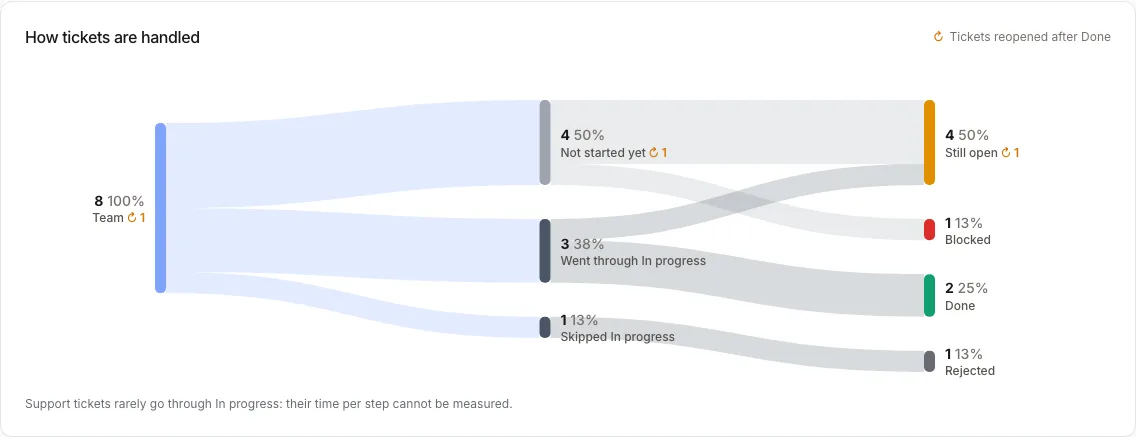
- How tickets are handled, from support to their final state.
- What moved since yesterday.
- Where tickets stall, by time spent in their current step.
- The tickets to handle, with the signal that raised them and a link to the conversation.
- A table per board, and resolution time by ticket type.
- Workload per assignee (visible to the organization owner only) and the main reasons tickets are blocked.
Good to know
What ResponZ never does
The connection is read-only. ResponZ never creates, edits, comments on, assigns or moves a ticket in Jira. It does not use an AI model on your tickets: the signals and figures are computed from the data above.
Disconnect
From Settings → Connections, choose Disconnect Jira and confirm. The access, the imported tickets, their links to conversations and your settings are deleted from ResponZ. Your tickets in Jira are not touched. You can switch the project at any time: the tickets imported from the previous one are deleted and the import starts again.
If you connected with Atlassian, disconnecting in ResponZ does not remove the authorization on the Atlassian side. To remove it, open the connected apps of your Atlassian account and remove ResponZ.
Good to know
- One project per organization. An organization follows one software, with its Intercom and its Jira project. To follow another product, use its own organization.
- Jira Cloud only. You connect with Atlassian or with an API token, and the connection is read-only either way.
- Links come from Intercom. A ticket appears next to a conversation only if it was created or linked through the Jira app for Intercom, and the conversation belongs to this organization.
- Deleted tickets. A ticket deleted in Jira is not removed from ResponZ automatically.
- Skipped steps. Most support tickets go straight from To do to Done. ResponZ shows total time and time in the current status, not a time per step.
FAQ
Can I connect several Jira projects? Not in one organization. Use one organization per product.
Why is a ticket not linked to a conversation? Check that it was created from the conversation with the Jira app for Intercom, and that the conversation has been imported into ResponZ.
Do members see everything? Yes, except the workload per assignee, which is for the organization owner. Assignee names appear next to the tickets that need action.
Looking for the support side first? See Intercom.